

Pages
Member Settings
Manage your organization members
Overview
The Members section allows you to manage your organization’s members, including inviting new members, assigning roles, and controlling access to various features. This is an essential part of maintaining a secure and efficient organization.
Add member to your organization
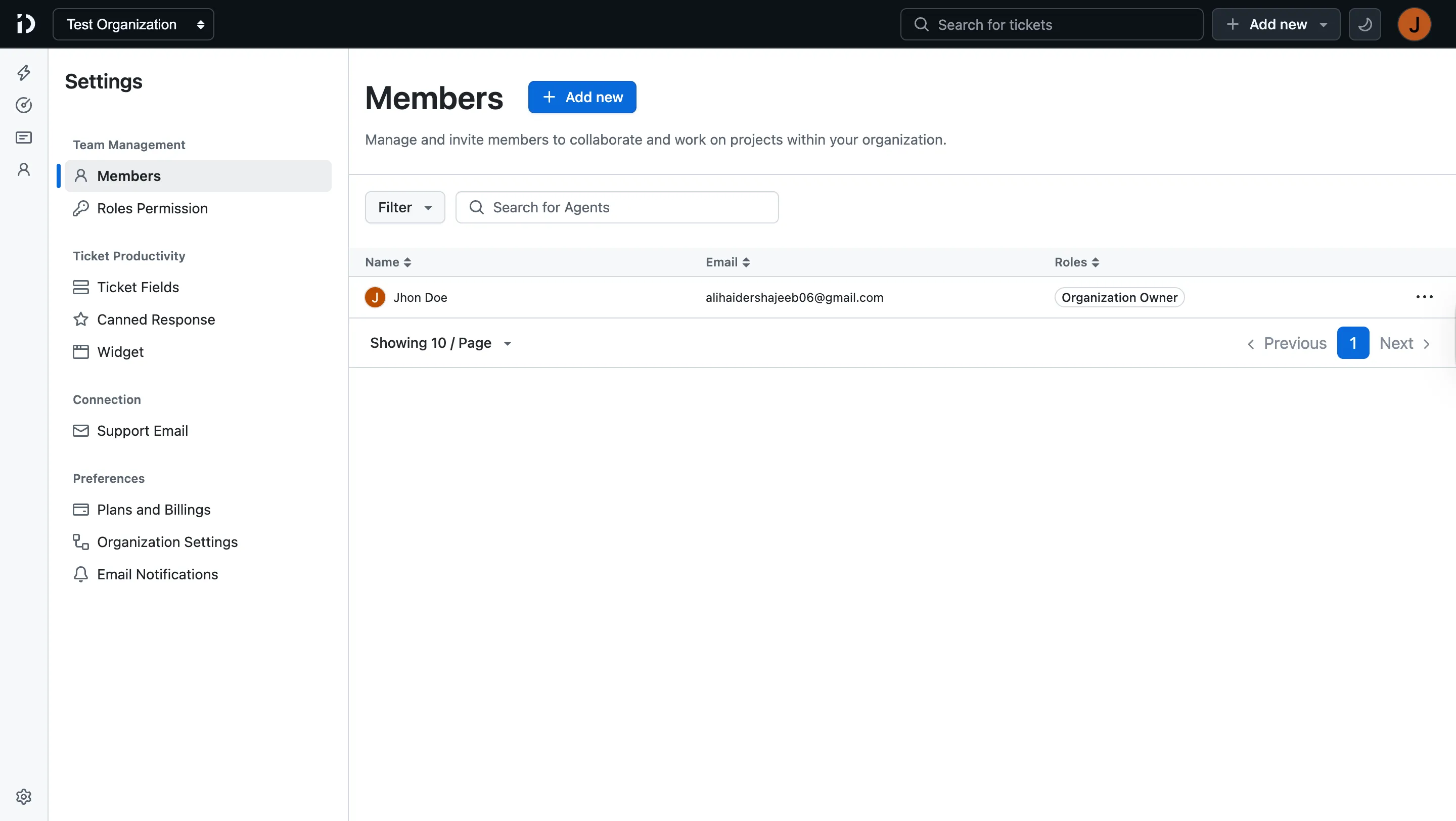
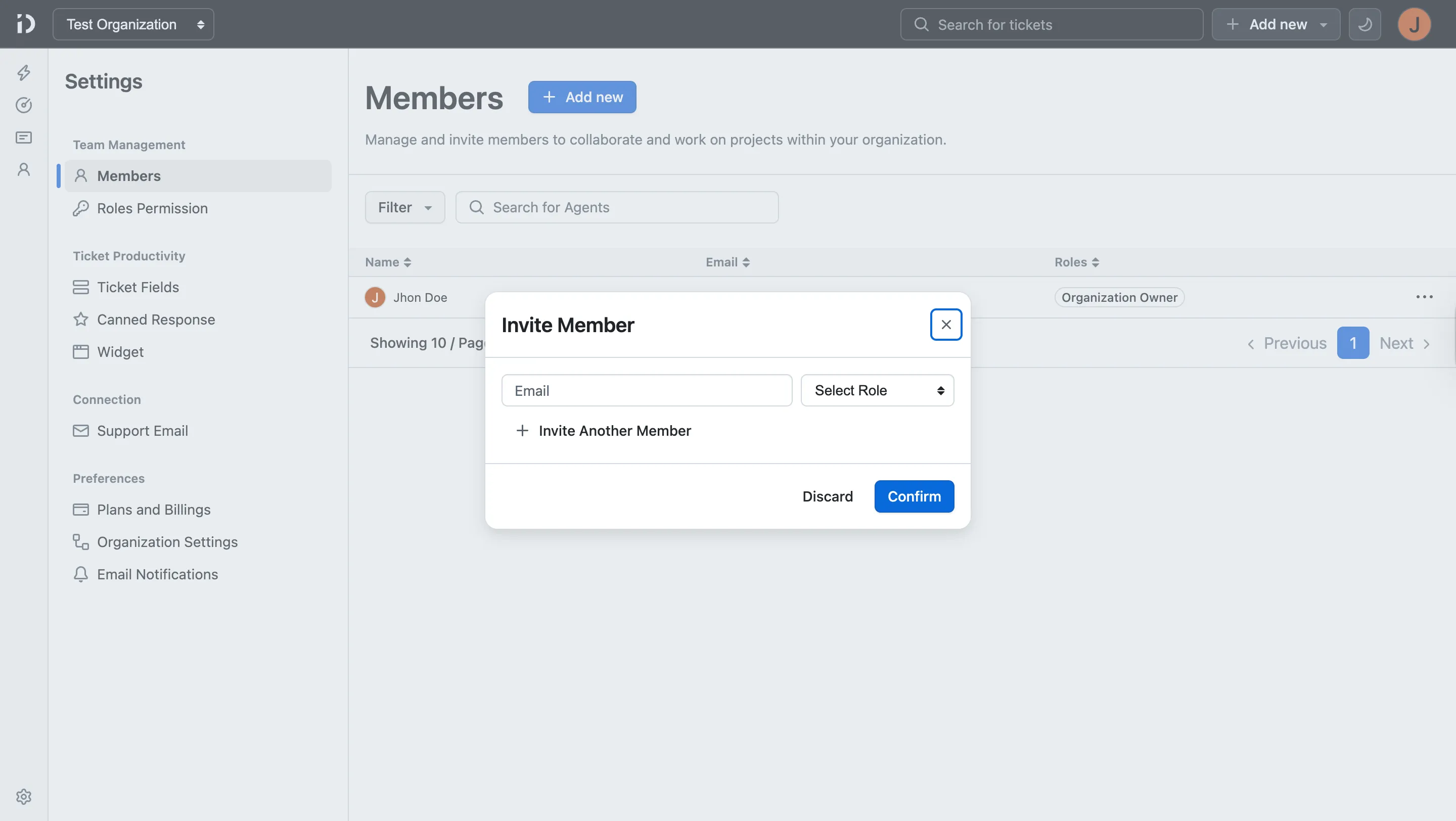
To add a member to your organization, navigate to the “Members” section in the settings menu. Click on “Invite Member” and enter the email address of the person you want to invite. You can also assign a role to the member during the invitation process. check the screenshot below for reference.
Step 1: Click on “Add new” button.
Step 2: Enter the email address of the member you want to invite and select the role.
You can invite multiple members at once by entering multiple email addresses. Assigning the appropriate role to each member ensures they have the right level of access to perform their tasks effectively.
The member will receive an email invitation to join the organization. Once they accept the invitation, they will be added to the organization with the assigned role and permissions.
Member Details
You can view and manage member details from Member Details page. This includes updating their role, seeing the assigned tickets, or removing members from the organization if necessary.
Table of Contents
On this page