

Pages
Canned Response
Using canned responses to streamline communication
Overview
Canned responses allow you to create predefined replies for common questions, saving time and ensuring consistency in communication.
Creating Canned Responses
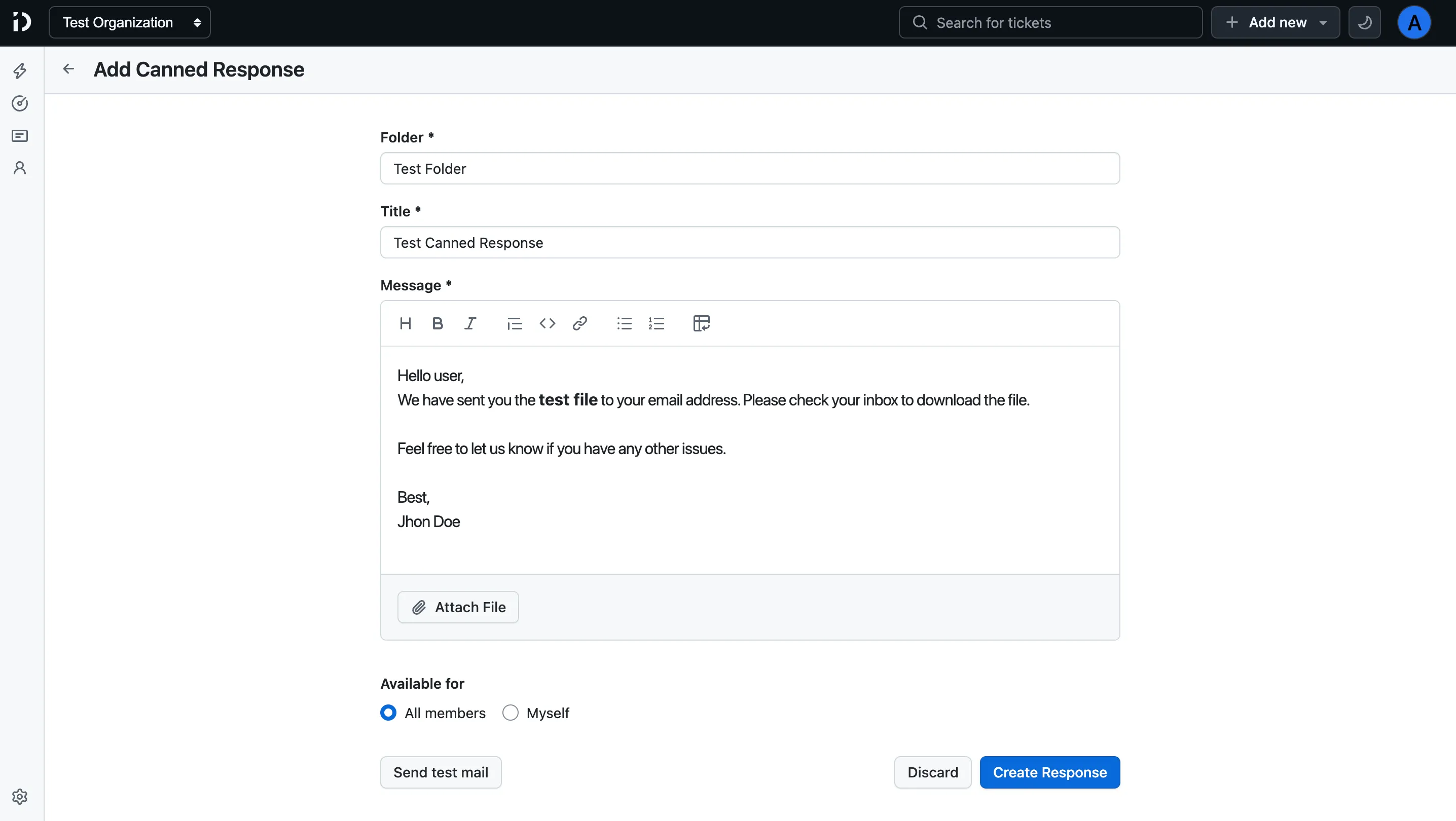
To create a canned response, navigate to the settings menu and select “Canned Responses.” Click “Add New” and enter your predefined message.
Add new canned response
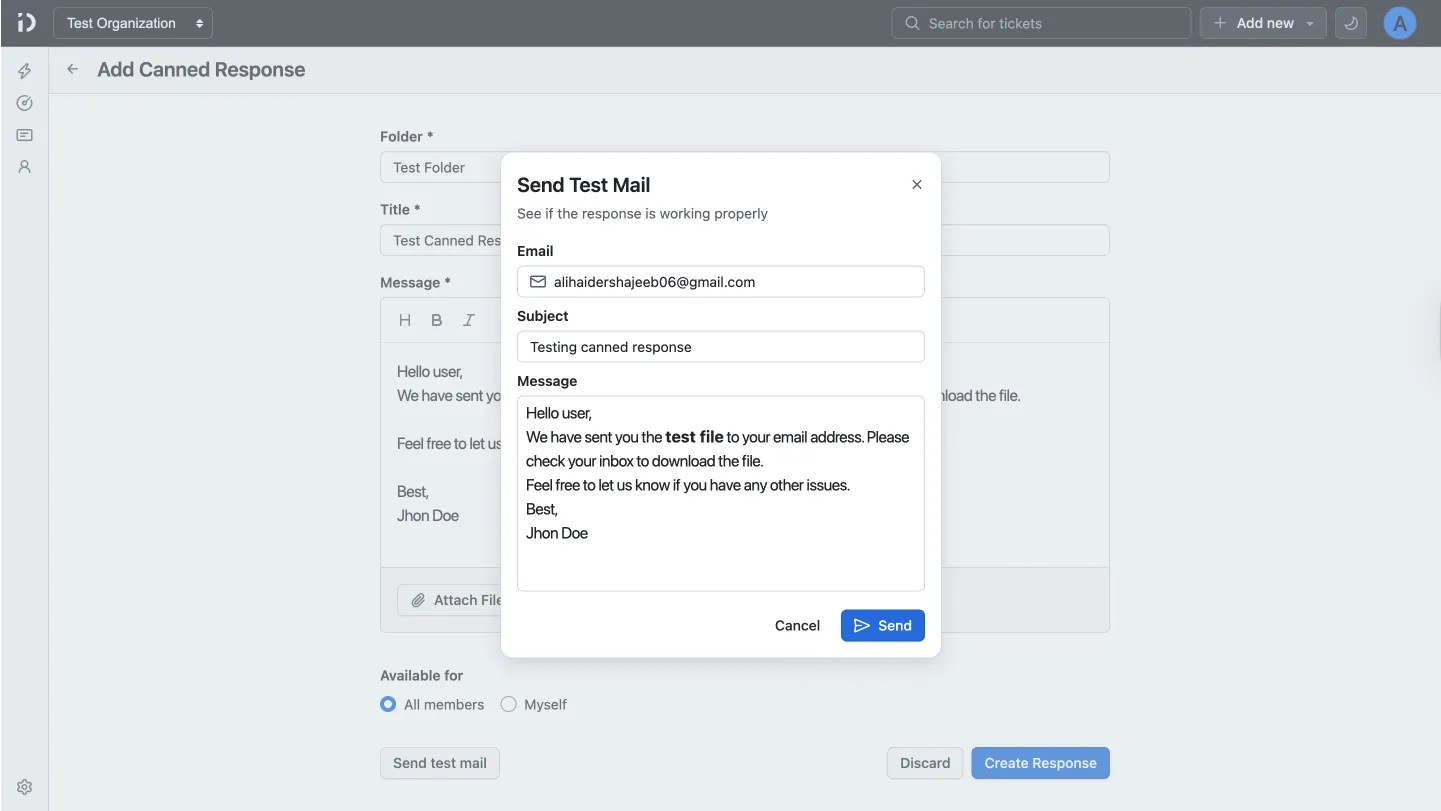
You can send test email to check the canned response by clicking on “Send Test Email” button. This will allow you to see how the canned response appears in an actual email before using it in customer communications.
Send test email
Using Canned Responses
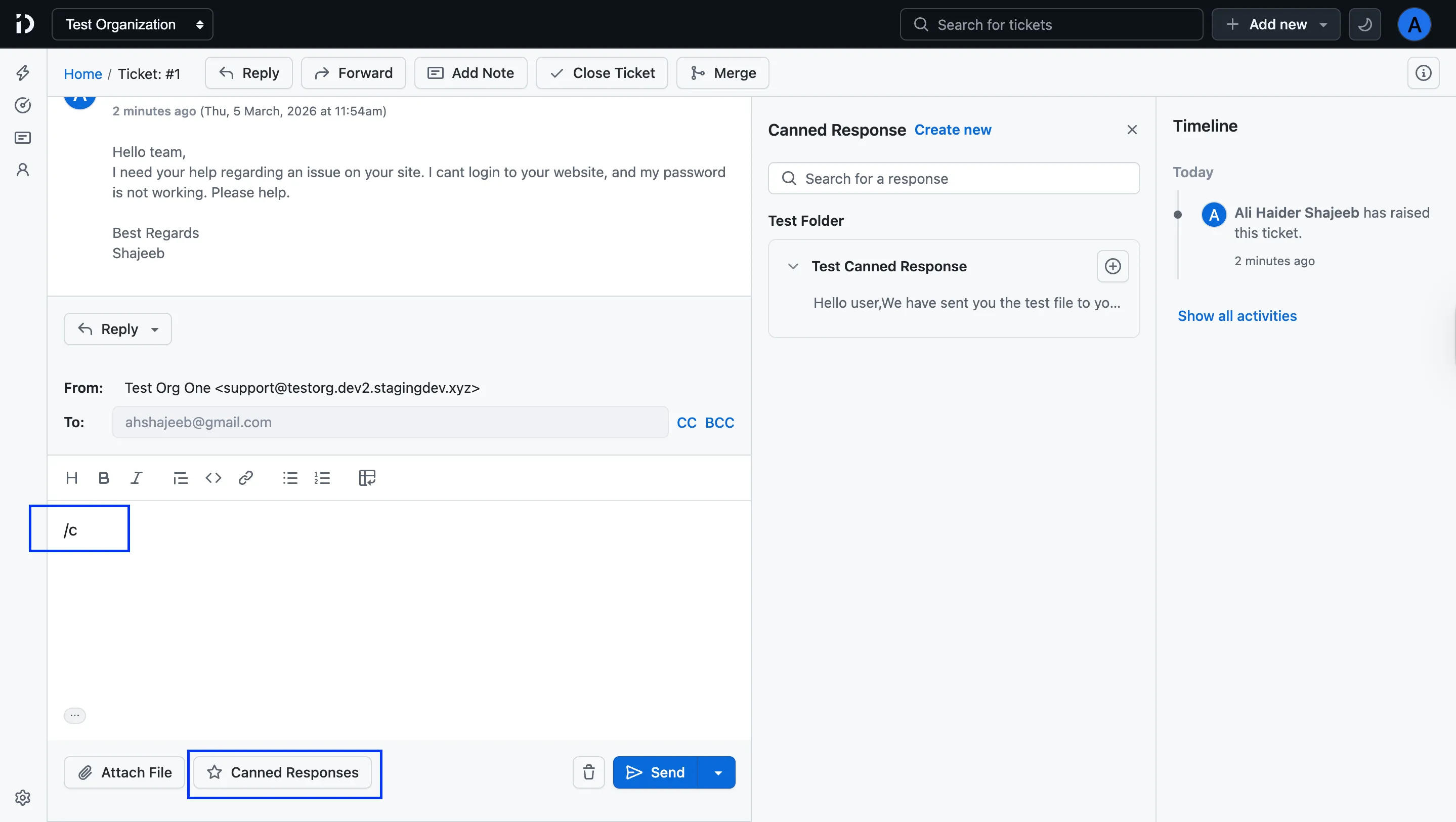
When responding to a customer, you can quickly insert a canned response by clicking the “Canned Responses” button or typing
“/c” in the reply editor and selecting the desired message.
This will automatically populate the reply with the predefined text, which you can then customize as needed before sending.
Insert canned response
Managing Canned Responses
You can edit or delete existing canned responses by going to the “Canned Responses” section in the settings menu. Simply select the response you wish to modify or remove and follow the prompts.
Best Practices
- Regularly review and update your canned responses to ensure they remain relevant and accurate.
- Personalize canned responses when possible to maintain a human touch in your communications.
Conclusion
Canned responses are a powerful tool to enhance efficiency and consistency in customer communication. By leveraging this feature, you can save time while still providing high-quality support.
FAQ
Q: How many canned responses can I create?
A: There is no limit to the number of canned responses you can create.
Q: Can I share canned responses with my team?
A: Yes, canned responses can be shared across your team to ensure everyone has access to the same predefined messages.
Table of Contents
On this page